
PLUGIN MANUAL
EARLYMURMUR Cast
Broadcast your master bus to the people you invite.
UPDATED Oct 8, 2026
MURMUR Cast is a broadcast tap. Put it last on your master bus, press ON AIR, and the people you invite hear exactly what leaves your speakers, live, in the browser.
The console has three modules. SESSION is where you go live. STREAM shows what is being sent. LISTEN is who can hear it: a QR code, the guest list and your invite buttons.
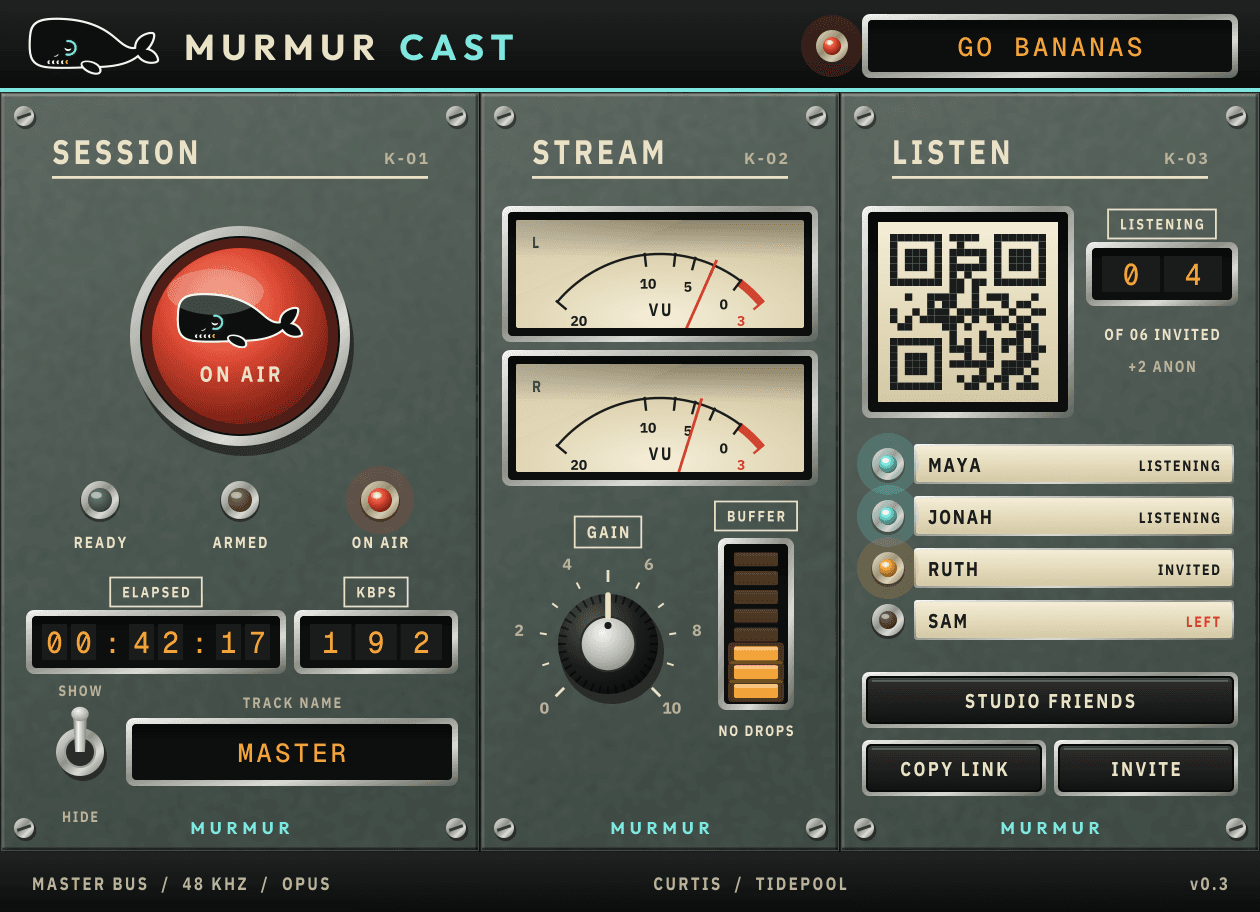
With the broadcast off, Cast passes audio through untouched. The picture below is the plugin's own face, drawn by Cast 0.5 itself.
THE PANEL
11 things worth knowing
A real screenshot of MURMUR Cast, captured straight from the plugin. Each number below points at the matching part of the panel.
- 1
Session name
Top right is the name listeners see for this session, with a red lamp that lights while you are on air. Click the name to change it.
- 2
ON AIR
Press the big red button to go live, and press it again to stop. The three lamps under it show where you are: READY (signed in, not broadcasting), ARMED (waiting for audio and the station) and ON AIR (audio is moving and the station has accepted it).
- 3
ELAPSED and KBPS
ELAPSED counts from the moment you are really on air and goes back to zero if you drop off. KBPS is the bitrate of the stream your listeners get.
- 4
Track name
Flip the switch to SHOW and listeners see the name in the window next to it. It is sent when a session starts, so a change made while you are live applies to your next session.
- 5
VU meters
Left and right levels of what is being sent to your listeners.
- 6
GAIN
A trim on what listeners hear. It never changes what you hear in the room. Drag up or down (hold Shift for fine steps), use the scroll wheel, or double-click to go back to unity.
- 7
BUFFER
How full the outgoing buffer is. Under it, NO DROPS means every block of audio made it out; otherwise it counts the ones that didn't.
- 8
QR code and LISTENING
Scan the code with a phone to open the listen link. LISTENING counts who is tuned in right now, out of how many you invited, plus anyone listening from a shared link.
- 9
Guests
Everyone you invited, with a lamp for each: listening, invited, or left. Click a name and the QR code switches to that person's own link.
- 10
Group, COPY LINK and INVITE
The top button picks who the session is for: anyone with the link, or one of your groups (Edit groups... is in the same menu). COPY LINK copies the listen link once you are live. INVITE opens a field: type an email and press Return to send a link.
- 11
Footer
Where Cast is tapping and the stream format (48 kHz Opus), who is signed in through Tidepool, and the version.
GETTING STARTED
1. Install Cast and sign in to Tidepool
Tidepool installs Cast and signs it in for you. There is no key to paste. Until it finds your sign-in, the footer says you are not signed in.
2. Put Cast last on your master bus
Cast broadcasts whatever reaches it, so put it after every other plugin.
3. Press ON AIR
The lamps go from READY to ARMED to ON AIR. ARMED means Cast is waiting for audio and for the station to accept it, so play something.
4. Invite your listeners
Press INVITE and type an email, copy the link with COPY LINK, or let someone scan the QR code.
FAQ
Does Cast change my sound?
No. With the broadcast off it passes audio through untouched, and GAIN only changes what your listeners hear.
Can I see where my listeners are?
When the GLOBE page is on, the CONSOLE and GLOBE buttons in the header switch to a globe that shows listeners by city, with no names, plus a tally of listeners and countries.
Why is ELAPSED stuck at 00:00:00?
It only counts once you are really on air. While the lamp says ARMED, Cast is still waiting for audio or for the station.
MORE DOCUMENTATION